Chapter 1
Roles at a glance
PPT has three roles. Each person has the role that matches what they need to do, and nothing more.
| Role | What they do | Usually |
|---|
| Player | Logs rounds, practice sessions and notes. Sees their own stats, charts, strengths and weak spots, and sets targets. | Members, juniors, squad and academy players |
|---|
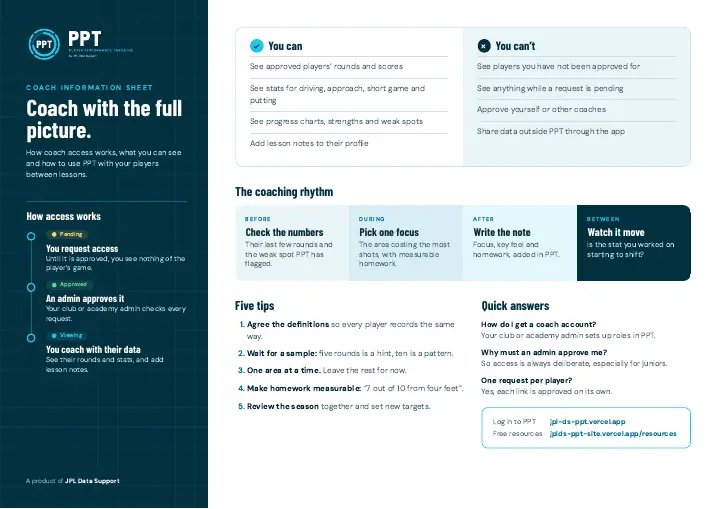
| Coach | Requests access to players. Once approved, views their rounds and stats and adds lesson notes to their profile. | PGA professionals, assistant pros, volunteer junior coaches |
|---|
| Admin | Manages users and roles, and approves or rejects each coach request, so access is always deliberate. | Junior organiser, academy lead, club manager |
|---|
Tip Have at least two admins, so requests are never held up when one of you is away.
Chapter 2
Before you start
An hour of planning makes the rollout much smoother. Work through this list with your head coach or academy lead.
- Choose your admins. Who will approve coach requests and manage users?
- List your coaches. Note which players or squads each coach works with.
- List your groups. Squads, academies, junior sections or teams that will use PPT first.
- Check your policies. Read your club’s safeguarding and data protection policies alongside our privacy policy.
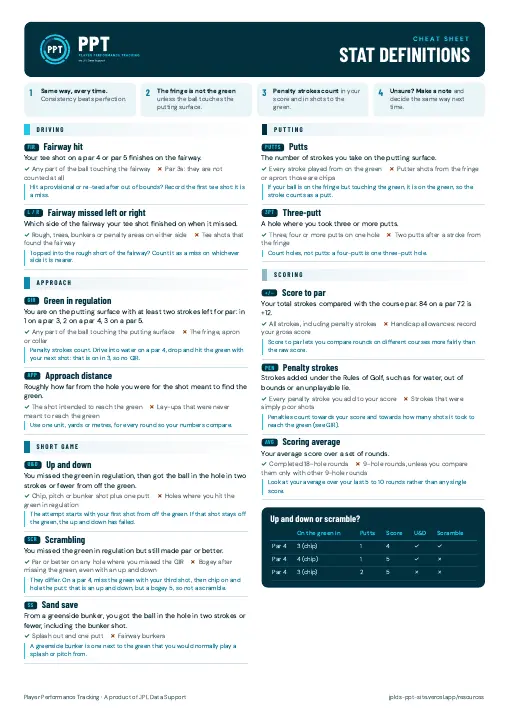
- Agree the definitions. Everyone should record stats the same way. Share the stat definitions cheat sheet.
- Plan how you will tell parents. For junior players, decide who writes to parents and when (see chapter 6).
- Pick a start date. The start of a season or term works best, so everyone begins together.
Chapter 3
Approving coach requests
Coaches never see a player by default. When a coach asks for access to a player, an admin approves or rejects the request. A quick, consistent check keeps it fair for everyone.
Approve when
- The coach is on your list of club or academy coaches
- They genuinely coach this player or their squad
- For juniors, it fits your safeguarding policy
Check first when
- You do not recognise the coach
- The player is not in a group they coach
- The request is for a junior and anything is unclear
Reject when
- The coach no longer works with the club
- The player or their parent has asked you not to
- You cannot confirm who the coach is
Tip When a coach leaves or a player changes coach, update access straight away. Review the full list at least once a term.
Chapter 4
Rolling out to a squad
Start with one group, get it working, then grow. This four-week plan suits a squad of around 8 to 20 players.
- Week 1
Brief the coaches
Walk coaches through PPT and the stat definitions. Agree what you want to learn about the squad by the end of the season.
- Week 2
Introduce the players
Hand out the player information sheet. Log a practice round together so everyone sees how quick it is.
- Week 3
Every round, every player
Players log each round. Coaches check rounds are coming in and help anyone who is stuck.
- Week 4
First look at the data
Look for patterns across the squad. Pick one or two areas to focus on in group sessions and set first targets.
Tip Print the on-course stats tracker for competitions and squad matches. It makes logging afterwards quicker and more accurate.
Chapter 5
Junior players and safeguarding
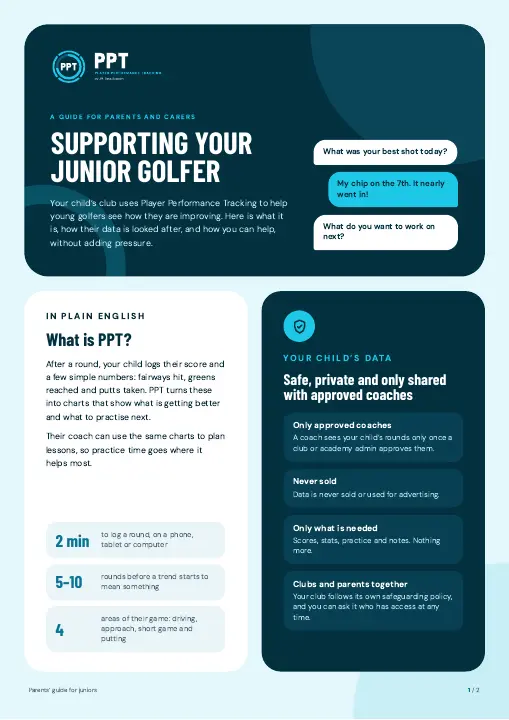
PPT is built so junior players’ data is only seen by the people who should see it. It supports your club’s safeguarding policy; it does not replace it.
Approved coaches only
Juniors’ data is shared only with coaches an admin has approved.
Parents in the loop
Tell parents what is recorded and why before their child starts, in line with your policy.
Never sold
Data is never sold or used for advertising. See our privacy policy.
Tidy access
Remove access promptly when a coach leaves or a junior moves on.
Good practice Ask your welfare officer to read this guide and the parents’ guide before you start with juniors.
Chapter 6
Bringing parents on board
Parents are far more supportive when they know what PPT is and why the club uses it. Send a short message before juniors start, and include the parents’ guide. You are welcome to adapt this one.
Example message to parents
Dear parents and carers,
This season our junior section will use Player Performance Tracking (PPT) to help players see how their golf is improving. After each round, players log their score and a few simple stats, such as fairways, greens and putts. PPT turns these into charts that help them, and their coach, decide what to practise.
Only your child and the coaches our club has approved can see their data. It is never sold or used for advertising. A short guide for parents is attached, and you are welcome to ask us any questions.
With thanks,
[Name], Junior Organiser
Chapter 7
Keeping it going
Momentum matters most after the first few weeks. A few habits keep PPT useful all season.
Every month
- Check every player is still logging rounds
- Share one squad-wide insight in a group session
Every term
- Review the coach access list
- Celebrate improvements, however small
- Ask players and coaches what would help
Every season
- Run an end-of-season review with each player
- Set new targets for next season
- Welcome new players with the information sheet
Need a hand getting started?
We are happy to talk your club or academy through setting up PPT.
Get in touchQuestions about setting up PPT at your club? Email jpl-ds@outlook.com or visit jplds-ppt-site.vercel.app/contact.